What you need接続に必要なもの
- KORG volca fm or volca fm2KORG volca fm または volca fm2
- A USB MIDI interface (the volca has no USB MIDI port)USB MIDIインターフェース(volcaはUSB MIDI端子を持たないため必須)
- A MIDI cable to the volca's MIDI IN (volca fm2 also needs MIDI OUT to send data back to the app)volcaのMIDI INにつなぐMIDIケーブル(volca fm2から受信する場合はMIDI OUTも)
- A USB camera adapter if your interface does not plug into your iPhone or iPad directlyインターフェースをiPhone / iPadに直接挿せない場合はUSBカメラアダプタ
- iOS 17.0 or later (Mac is also supported)iOS 17.0以降(Macにも対応)
The original volca fm can only receive data. Reading voices or banks back from the device works with the volca fm2 only.初代volca fmはデータの受信のみに対応しています。本体から音色やバンクを読み出す機能はvolca fm2専用です。
Features機能一覧
Getting things done使い方
Connect to your volcavolca とつなぐ
- Connect the USB MIDI interface to your iPhone, iPad or Mac.
- Connect the interface's MIDI OUT to the volca's MIDI IN (and the volca fm2's MIDI OUT to the interface's MIDI IN to receive).
- Open the app and check the connection status.
- USB MIDIインターフェースをiPhone / iPad / Macにつなぎます。
- インターフェースのMIDI OUTをvolcaのMIDI INへつなぎます(volca fm2から受信する場合は、volcaのMIDI OUTをインターフェースのMIDI INへ)。
- アプリを開いて接続状態を確認します。
Bring in a .syx bank.syx バンクを取り込む
- Get a DX7 .syx file onto your device (Files, AirDrop or the share sheet).
- Import it from the bank list. A 32-voice bank becomes a new bank.
- Send the bank to the volca.
- DX7の.syxファイルを端末に用意します(ファイルアプリ、AirDrop、共有シート)。
- バンク一覧から読み込みます。32音色のバンクは新しいバンクになります。
- バンクをvolcaへ送信します。
FAQ
Do I need a MIDI interface?
Yes. The volca fm and volca fm2 have no USB MIDI port, so a USB MIDI interface is required to connect them to your iPhone, iPad or Mac.
Can I read patches back from my volca?
With the volca fm2, yes. The original volca fm can only receive data, so the library on your device is the master copy.
Which file formats can I import?
DX7 SysEx files (.syx) containing a single voice or a 32-voice bank. Banks from Dexed use the same format.
Is the app free?
Free to download. Editing, saving and sending one bank are free. Premium, a one-time purchase, unlocks more banks, .syx import and export, bank transfer and backup. No subscription.
MIDIインターフェースは必要ですか?
はい。volca fm / volca fm2はUSB MIDI端子を持たないため、iPhone / iPad / Macとつなぐには USB MIDIインターフェースが必要です。
volca から音色を読み出せますか?
volca fm2なら可能です。初代volca fmはデータの受信のみに対応しているため、端末上のライブラリを正として管理します。
どの形式のファイルを取り込めますか?
DX7のSysExファイル(.syx)の1音色と32音色バンクです。Dexedのバンクも同じ形式です。
アプリは無料ですか?
無料でダウンロードできます。1つのバンクの編集・保存・送信は無料。Premium(買い切り)で、2つ目以降のバンク、.syxの読み込み・書き出し、バンク単位の送受信、バックアップが使えるようになります。サブスクリプションはありません。
Volca Editor FM is an unofficial app. It is not affiliated with, endorsed by, or supported by KORG Inc.. All trademarks and product names are the property of their respective owners.Volca Editor FM は非公式アプリです。KORG Inc. とは関係ありません。記載の商標・製品名は各社の所有物です。
Contact連絡先
Found a bug? Have a feature request? We'd love to hear from you.不具合の報告や機能のご要望は、こちらまでお寄せください。
ms50g_editor [at] icloud.comMore appsほかのアプリ
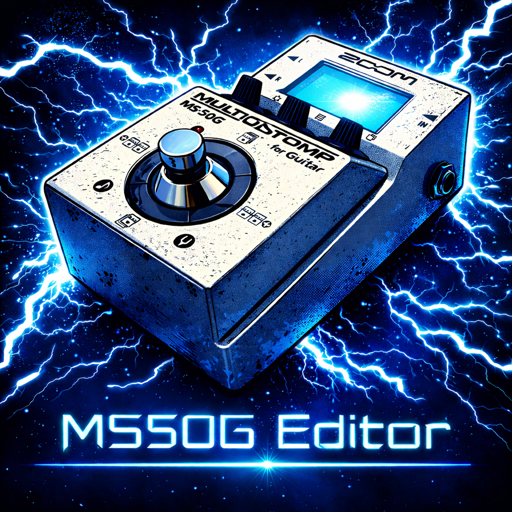
Goodbye to the MS-50G's tiny screen. Edit, back up and send patches from your iPhone.MS-50Gの小さな画面とはお別れ。iPhoneで編集・バックアップ・転送。
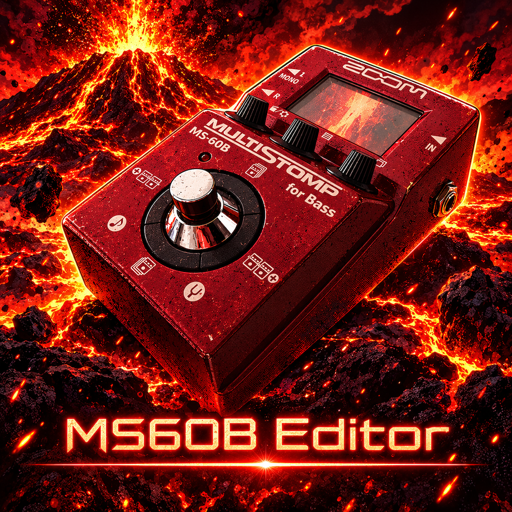
Goodbye to the MS-60B's tiny screen. The iPhone app it's been waiting for.MS-60Bの小さな画面とはお別れ。待っていたiPhoneアプリ。
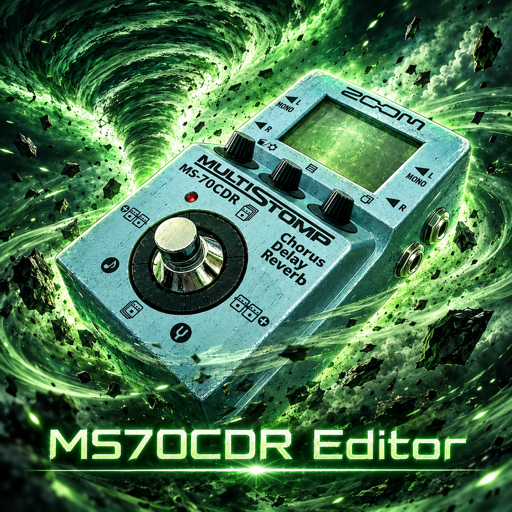
Goodbye to the MS-70CDR's tiny screen. The iPhone app it's been waiting for.MS-70CDRの小さな画面とはお別れ。待っていたiPhoneアプリ。
Run your screenless GCE-3 from your iPad or iPhone, then record straight from it.画面のないGCE-3を、iPadとiPhoneだけで。そのまま録音もできる。