What you need接続に必要なもの
- Original ZOOM MS-50G (firmware v3.10)初代 ZOOM MS-50G(ファームウェア v3.10)
- A USB cable. Lightning iPhones and iPads also need an adapter (see below).USB ケーブル。Lightning 端子の iPhone / iPad はアダプタも必要です(下記参照)。
- iOS 17.0 or later (Mac is also supported)iOS 17.0以降(Macにも対応)
The MS-50G has a USB Mini-B port. What you need depends on the port on your iPhone or iPad.MS-50G の USB 端子は Mini-B です。必要なものは、お使いの iPhone / iPad の端子で決まります。
iPhone / iPad with USB-C (iPhone 15 or later, USB-C iPads)USB-C 端子の iPhone / iPad(iPhone 15 以降、USB-C の iPad)
- One USB-C to USB Mini-B cable. No adapter is needed.USB-C – USB Mini-B ケーブル 1 本だけ。アダプタは不要です。
- Use a cable that supports data transfer. Charge-only cables will not connect.データ転送に対応したケーブルを使ってください。充電専用ケーブルでは接続できません。
iPhone / iPad with Lightning (iPhone 14 or earlier, Lightning iPads)Lightning 端子の iPhone / iPad(iPhone 14 以前、Lightning の iPad)
- Apple's Lightning to USB Camera Adapter, or the Lightning to USB 3 Camera Adapter.Apple の「Lightning - USB カメラアダプタ」または「Lightning - USB 3 カメラアダプタ」
- A USB-A to USB Mini-B cable between the adapter and the MS-50G.アダプタと MS-50G をつなぐ USB-A – USB Mini-B ケーブル
MacMac
- A USB-C or USB-A to USB Mini-B cable, matching the port on your Mac.Mac の端子に合わせた USB-C または USB-A – USB Mini-B ケーブル
The built-in setup guide shows the cable and adapter for your device with illustrations.初回起動時の接続ガイドが、お使いの機種に合わせて必要なケーブルとつなぎ方をイラストで案内します。
Powering the MS-50G from the iPhone or iPad alone is not guaranteed. Run the MS-50G on batteries or its AC adapter. On Lightning devices, the Lightning to USB 3 Camera Adapter with its own power supply also works.iPhone / iPad からの給電のみでの MS-50G の動作は保証されません。MS-50G は電池または AC アダプタで動かしてください。Lightning の場合は、電源を供給できる「Lightning - USB 3 カメラアダプタ」でも構いません。
Features機能一覧
A look inside画面
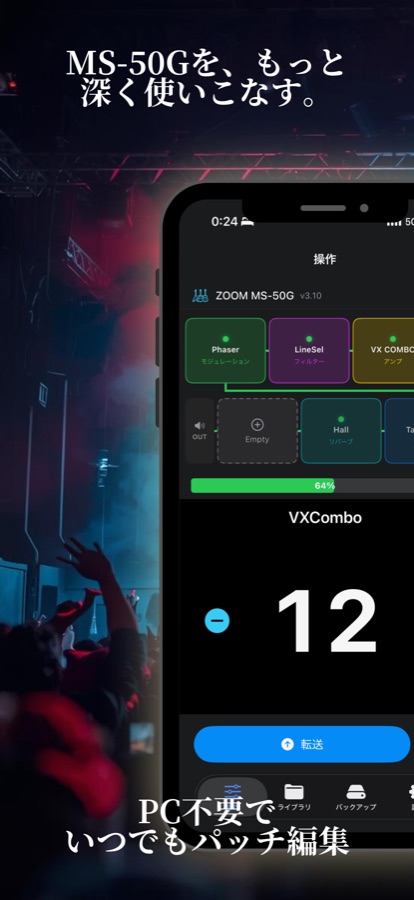
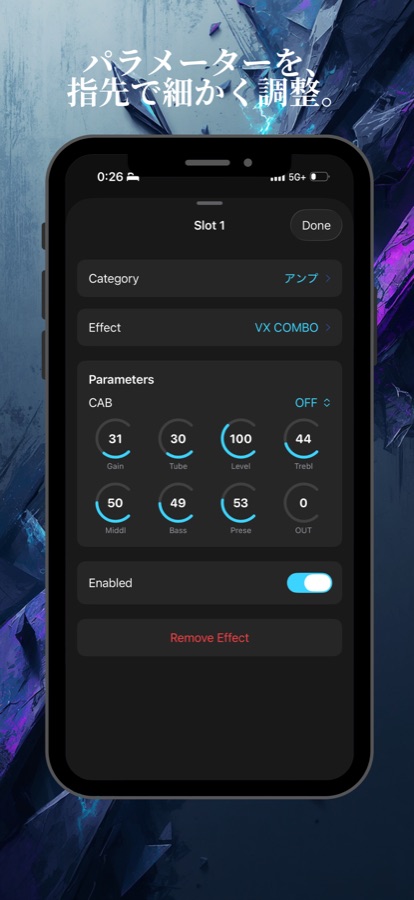
Getting things done使い方
Connect to your iPhoneiPhoneとつなぐ
- Power on the MS-50G (batteries or AC adapter recommended).
- Connect the MS-50G's USB port to your iPhone with the cable for your device (USB-C: cable only. Lightning: camera adapter plus cable).
- Open the app. It detects the pedal automatically; the setup guide shows the right cable if it does not.
- MS-50Gの電源を入れます(電池またはACアダプタでの給電を推奨)。
- お使いの機種に合うケーブルで、MS-50GのUSB端子とiPhoneをつなぎます(USB-C:ケーブルのみ。Lightning:カメラアダプタ+ケーブル)。
- アプリを開くと自動で検出します。つながらないときは接続ガイドが必要なケーブルを案内します。
Send a patch to the pedalパッチを本体に送る
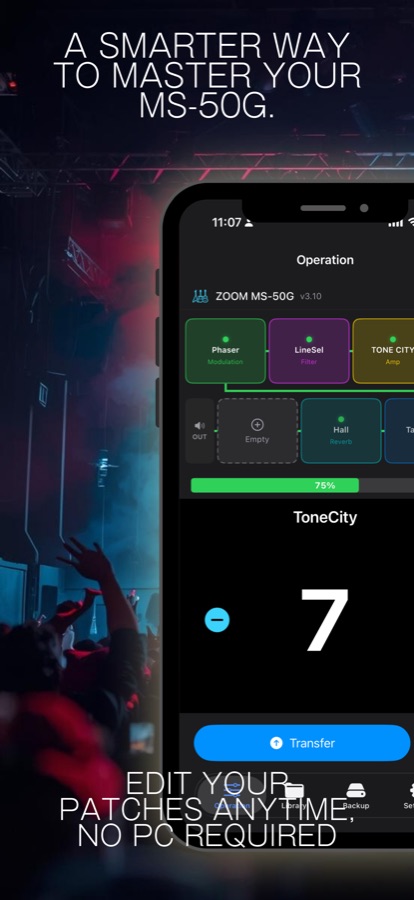
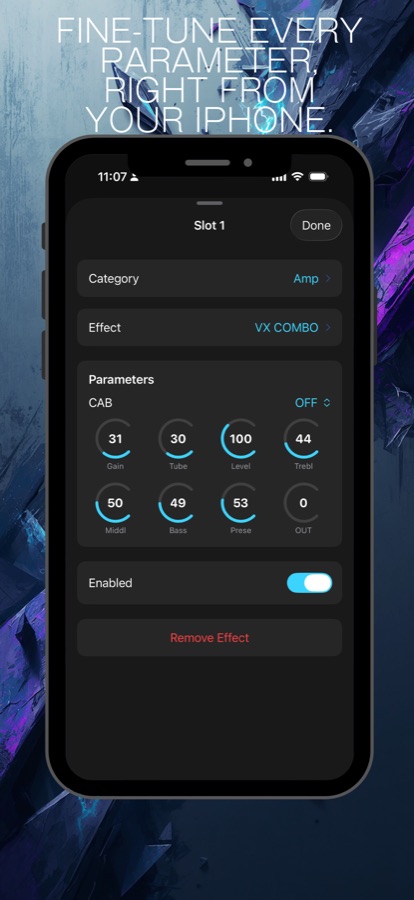
- Open a patch and edit the effect chain.
- Send it to the MS-50G. The pedal plays exactly what you see.
- パッチを開いてエフェクトチェーンを編集します。
- MS-50Gへ送信します。見たままの音が本体から出ます。
Back up and restoreバックアップと復元
- Back up all 50 patches from the pedal in one tap.
- Restore the whole setup or a single patch whenever you need it.
- 本体の50パッチをワンタップでバックアップします。
- 必要なときに、セットアップ全体または個別のパッチを復元します。
Share via QRQRで共有
- Create a QR code from a saved patch and show it to a friend.
- To import, scan the QR code with the camera or pick a QR image from your photo library.
- 保存済みのパッチからQRコードを作って相手に見せます。
- 読み込む側はカメラでスキャンするか、フォトライブラリのQRコード画像を選びます。
Sync with Mac and tweak on the goMacと同期して出先で直す
- Build sounds in the Mac version at home.
- The library syncs over iCloud, so you can fine-tune on your iPhone at rehearsal.
- 家ではMac版で音を作り込みます。
- ライブラリはiCloudで同期されるので、スタジオではiPhoneで微調整できます。
FAQ
How do I connect my MS-50G to the app?
Connect the MS-50G's USB Mini-B port to your iPhone or iPad. On a USB-C iPhone or iPad, a USB-C to USB Mini-B data cable is all you need. On a Lightning iPhone or iPad, use Apple's Lightning to USB Camera Adapter plus a USB-A to USB Mini-B cable. Power the MS-50G with batteries or its AC adapter, because bus power from the iOS device alone is not guaranteed. The app detects the pedal automatically once connected, and the setup guide shows the exact cable for your device.
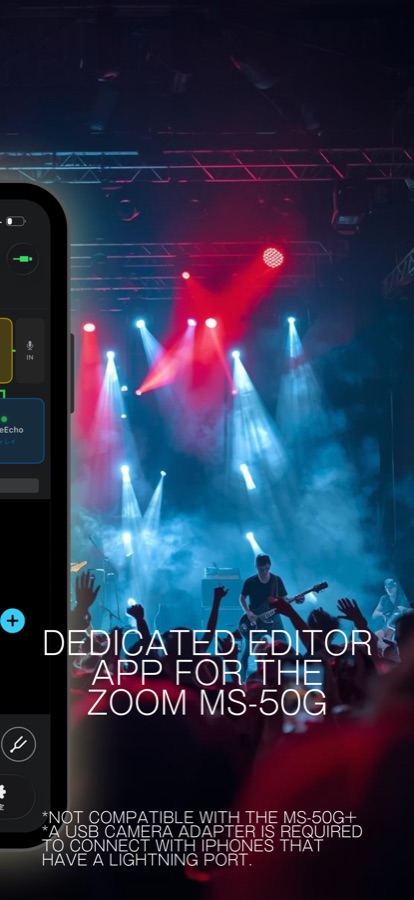
Is the MS-50G+ also supported?
No. MS50G Editor is designed exclusively for the original ZOOM MS-50G. The MS-50G+ has its own official app provided by ZOOM, so there are no plans to support it in this app.
Which iOS versions are supported?
MS50G Editor requires iOS 17.0 or later. Mac Catalyst is also supported. For the best experience, we recommend keeping your device updated to the latest iOS version.
Can I back up all patches at once?
Yes! Use the Bulk Backup feature to save all 50 patches from your device. You can restore them individually or all at once. Premium users can also back up to iCloud.
How does QR code sharing work?
You can generate a QR code from any saved patch to share with other users. To import, scan a QR code with your camera or import a QR code image from your photo library.
My device isn't being detected. What should I do?
Make sure the cable (and, on Lightning devices, the camera adapter) is firmly connected and that the MS-50G is powered by batteries or its AC adapter. USB bus power from the iOS device alone is not guaranteed to be sufficient. On USB-C devices, check that the cable supports data transfer, because charge-only cables will not work. Try disconnecting and reconnecting the cable. If the issue persists, restart both the app and the pedal.
Is the app free?
MS50G Editor is free to download with a 1-week free trial that includes all features. After the trial period, a one-time purchase unlocks the patch transfer feature (sending patches to your pedal) and iCloud backup. Editing, browsing, and local backup features remain free. No subscription.
Which firmware version is supported?
MS50G Editor supports only MS-50G units running firmware version 3.10. Please update your pedal's firmware to v3.10 before using the app. Note: this app does not include a firmware update feature.
MS-50Gをアプリに接続するには?
MS-50GのUSB端子(Mini-B)とiPhone / iPadをつなぎます。USB-C端子のiPhone / iPadなら、USB-C – USB Mini-Bのデータ転送対応ケーブル1本で接続できます。Lightning端子のiPhone / iPadでは、Appleの「Lightning - USB カメラアダプタ」とUSB-A – USB Mini-Bケーブルを使います。iOSデバイスからの給電のみでのMS-50Gの動作は保証されないため、MS-50Gは電池またはACアダプターで動かしてください。接続後、アプリが自動的に検出します。必要なケーブルは接続ガイドが案内します。
MS-50G+にも対応していますか?
いいえ。MS50G EditorはオリジナルのZOOM MS-50G専用に設計されています。MS-50G+にはZOOM公式アプリが提供されているため、本アプリでの対応予定はありません。
対応しているiOSバージョンは?
MS50G EditorはiOS 17.0以降に対応しています。Mac Catalystにも対応。最高のエクスペリエンスのため、最新のiOSバージョンへのアップデートを推奨します。
全パッチを一括バックアップできますか?
はい!一括バックアップ機能でデバイスから50パッチすべてを保存できます。個別または一括で復元可能です。Premiumユーザーはさらにデバイスバックアップ全体のiCloudバックアップも利用できます。
QRコード共有はどう使いますか?
保存済みパッチからQRコードを生成して他のユーザーと共有できます。読み込みはカメラでQRコードをスキャンするか、フォトライブラリからQRコード画像を読み込みます。
デバイスが検出されません。どうすればいいですか?
ケーブル(Lightningの場合はカメラアダプタも)がしっかり接続され、MS-50Gが電池またはACアダプターで動いていることを確認してください。iOSデバイスのUSBバスパワーのみでは動作しない場合があります。USB-Cの場合は、ケーブルがデータ転送に対応しているかも確認してください(充電専用ケーブルでは接続できません)。ケーブルを抜き差ししても改善しない場合は、アプリとペダルの両方を再起動してください。
アプリは無料ですか?
MS50G Editorは無料でダウンロードでき、1週間のフリートライアルですべての機能をお試しいただけます。トライアル期間終了後は、買い切り購入(¥800)で実機へのパッチ転送機能とiCloudバックアップがアンロックされます。編集・閲覧・ローカルバックアップ機能は引き続き無料でご利用いただけます。サブスクリプションはありません。
対応しているファームウェアバージョンは?
MS50G Editorはファームウェアバージョン3.10のMS-50Gのみ対応しています。ご利用前にペダルのファームウェアをv3.10にアップデートしてください。なお、本アプリにファームウェアアップデート機能はありません。
MS50G Editor is an unofficial app. It is not affiliated with, endorsed by, or supported by ZOOM Corporation. All trademarks and product names are the property of their respective owners.MS50G Editor は非公式アプリです。ZOOM Corporation とは関係ありません。記載の商標・製品名は各社の所有物です。
Contact連絡先
Found a bug? Have a feature request? We'd love to hear from you.不具合の報告や機能のご要望は、こちらまでお寄せください。
ms50g_editor [at] icloud.comMore appsほかのアプリ
Goodbye to the MS-60B's tiny screen. The iPhone app it's been waiting for.MS-60Bの小さな画面とはお別れ。待っていたiPhoneアプリ。
Goodbye to the MS-70CDR's tiny screen. The iPhone app it's been waiting for.MS-70CDRの小さな画面とはお別れ。待っていたiPhoneアプリ。
Send classic DX7 patches from your phone to your volca fm.名機のパッチを、スマホから新しい機器へ。
Run your screenless GCE-3 from your iPad or iPhone, then record straight from it.画面のないGCE-3を、iPadとiPhoneだけで。そのまま録音もできる。